
Apply
See every application and what to do next
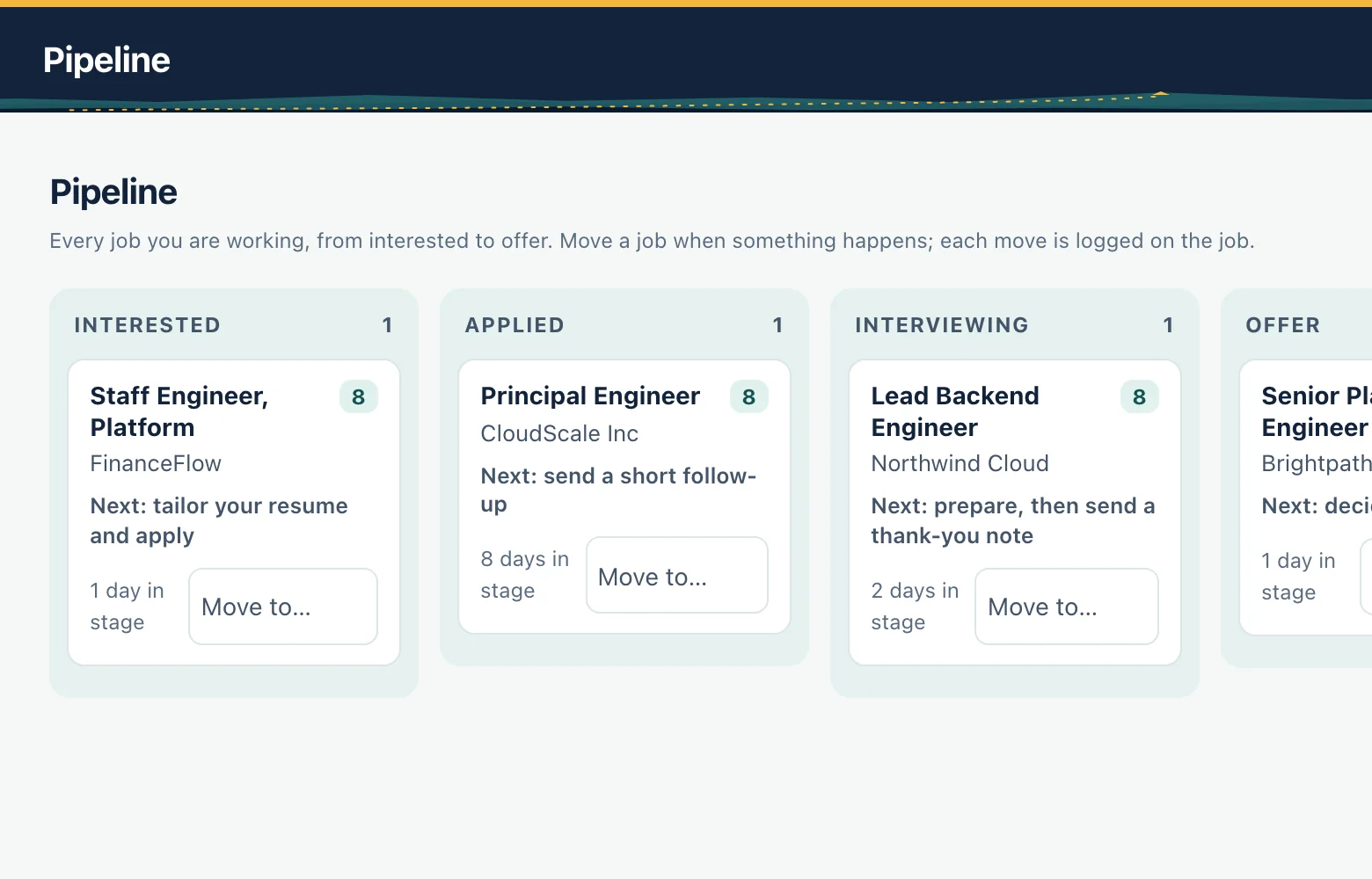
Your jobs sit in stages from Interested to Offer, each with how long it has been there and a suggested next step. Move them yourself, and undo any change.
What it does
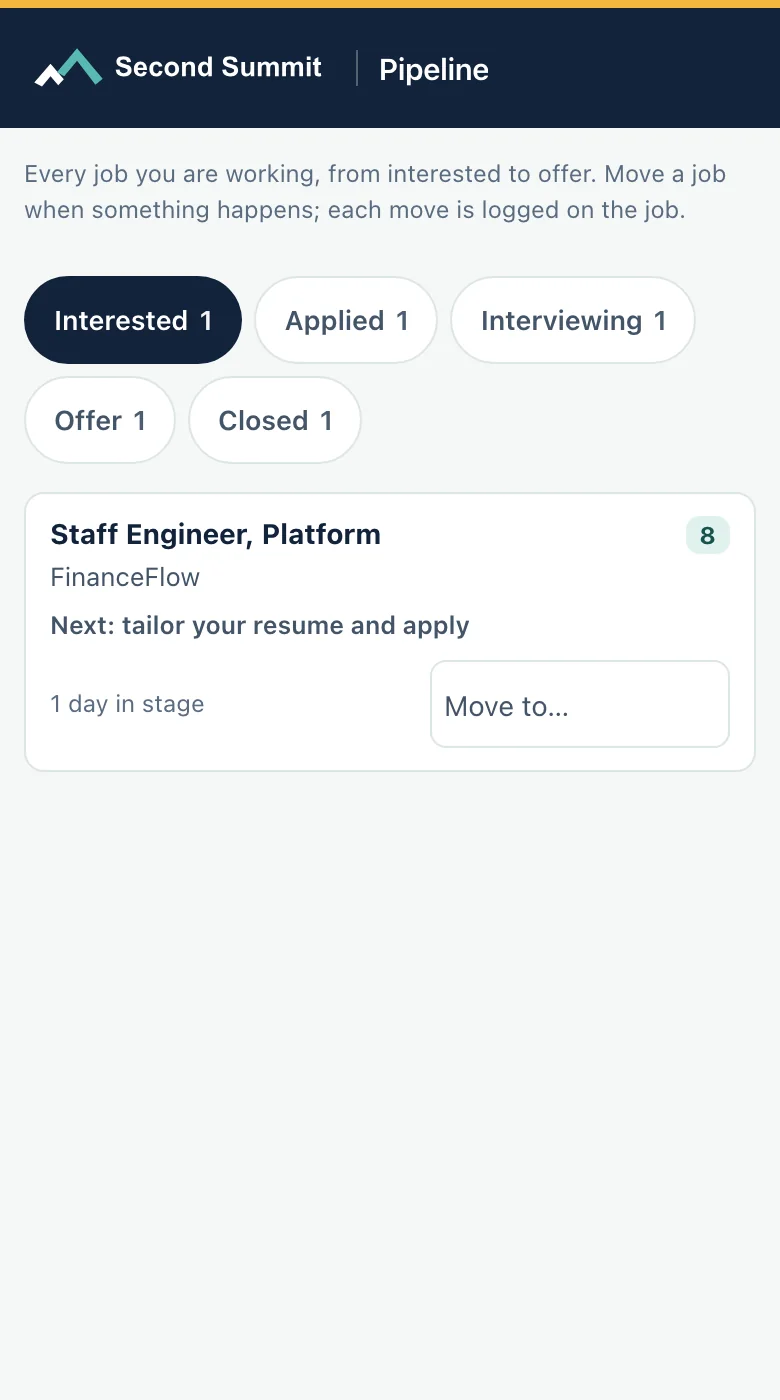
- Shows your jobs by stage: Interested, Applied, Interviewing, Offer and Closed, with the days in each stage.
- Suggests a next action on each card, such as sending a short follow-up.
- Lists applied jobs with no update on Today, so you can follow up.
- Moves a job with Move to, logs every change on its Activity and lets you undo it.
- Can also move a job when an employer's reply reaches your application address, showing why and with an Undo.
How it works
Step 1
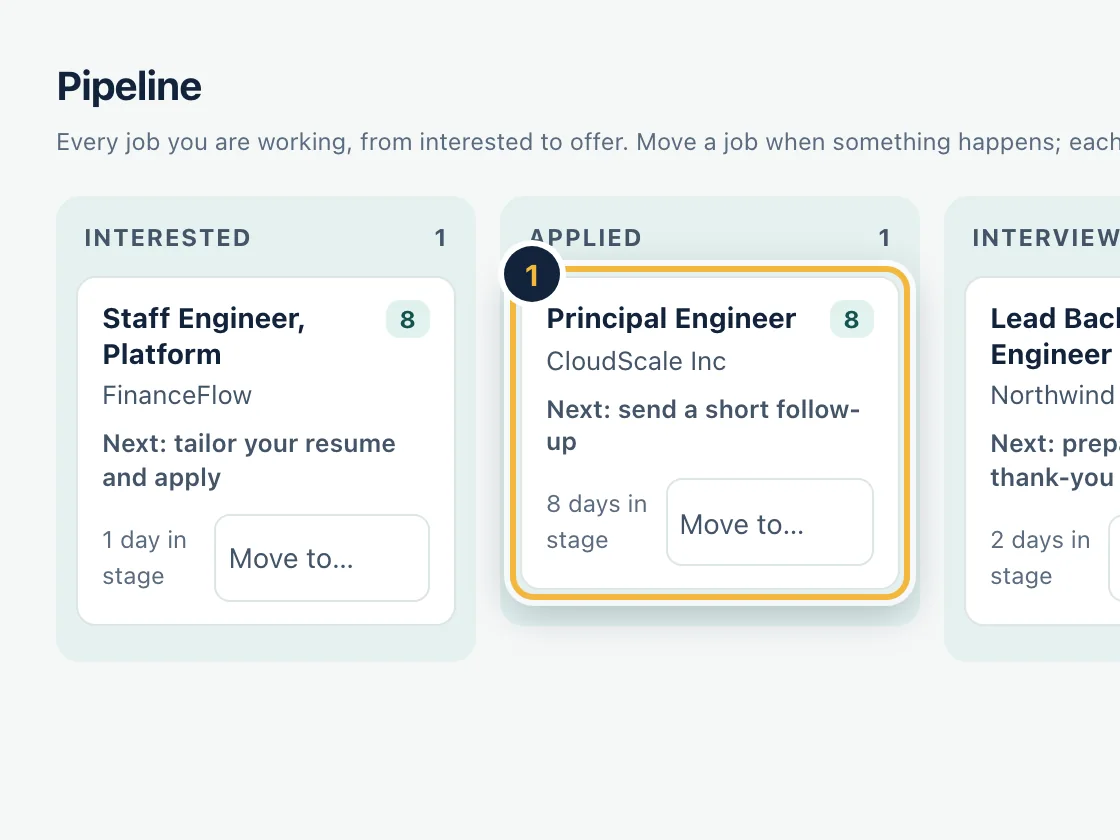
Open Pipeline to see every job by stage, with the next step on each card.
Sample data, on a computer Step 2
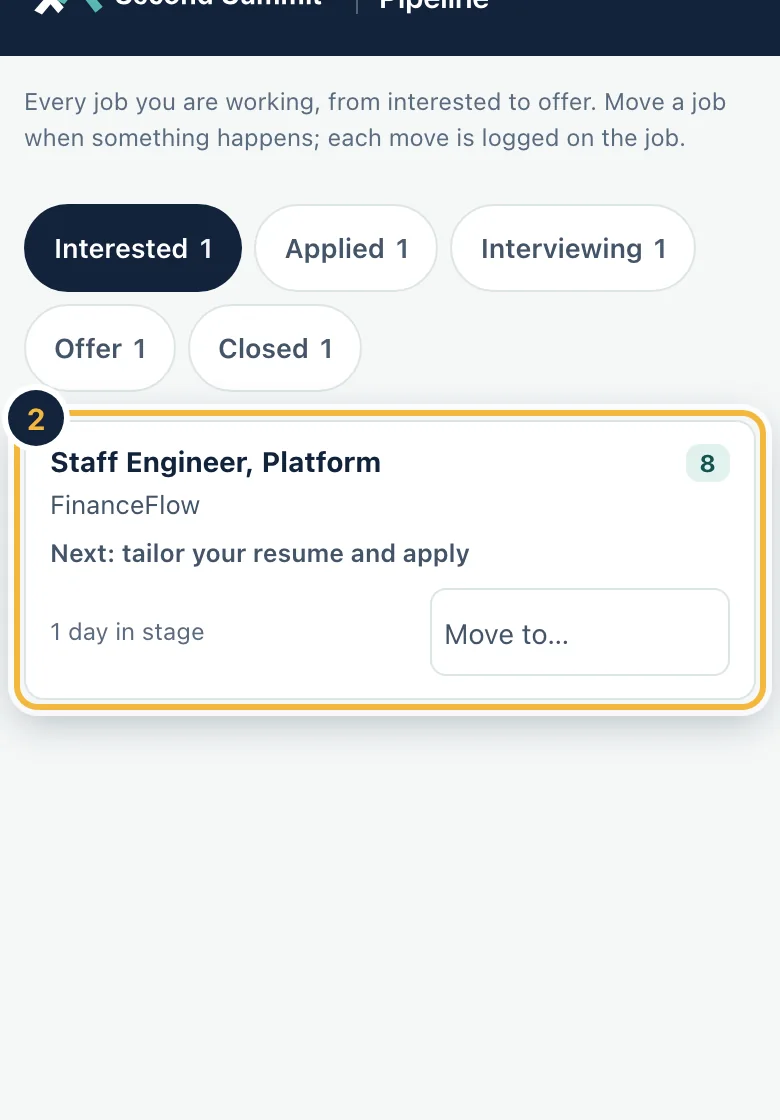
On your phone, one stage shows at a time. Move a job with the Move to menu.
Sample data, on a phone Step 3
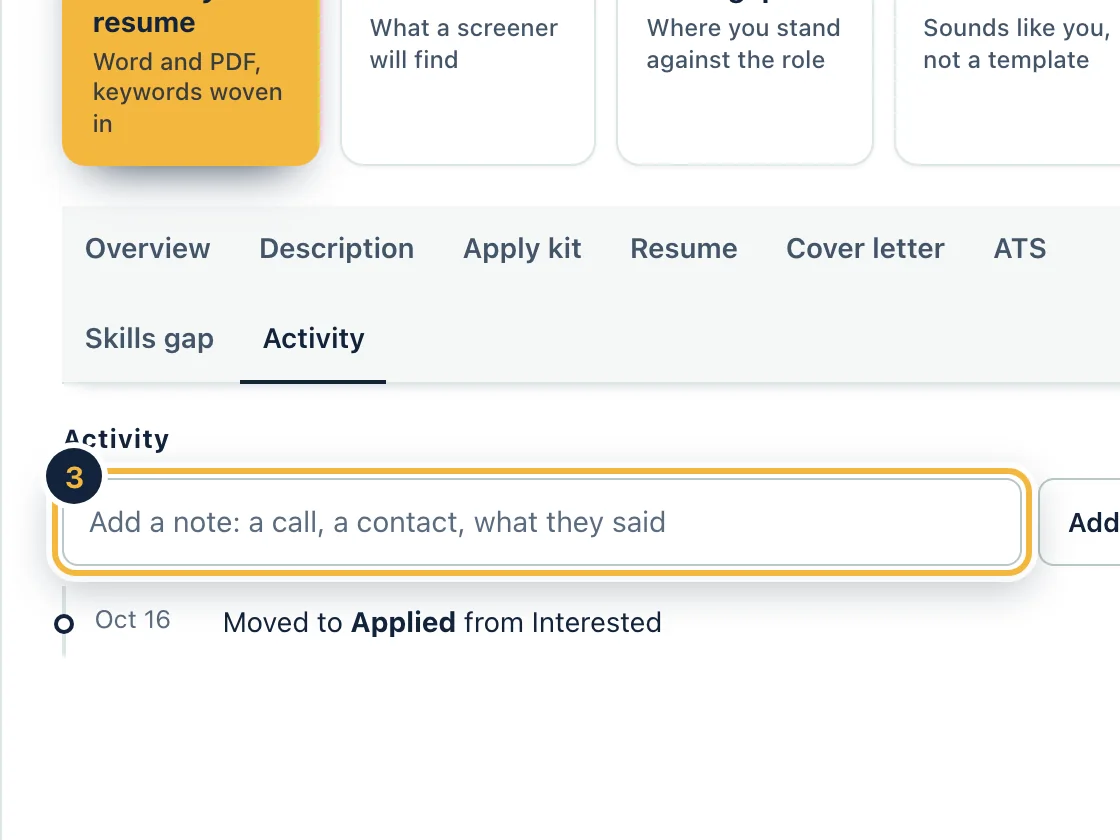
Open a job's Activity to see every move logged, and add a note of your own.
Sample data, on a computer
Who it is for
- Applying to many jobs
- Losing track of where you applied
Questions
Which jobs are in the pipeline?
Jobs you moved to Interested, Applied, Interviewing, Offer or Closed. New and dismissed jobs stay out of it.
What if I move a job by mistake?
Use Undo. Every move is also logged on the job's Activity, so you can see what changed and when.
How does it know when to suggest a follow-up?
It counts the days since you applied and shows applied jobs with no update, so you decide whether to write.
Does it read my email?
Only if you turn on application mail. It then uses the mail sent to your application address to spot confirmations and replies, and every change it makes shows why.
Related features
Try it on your own resume
Create a free account and start with the sample jobs or your own.